Offset documentation · All guides
Branding and navigation
Set your publication identity, fonts, accent color, and menu links.
Publication identity
In Ghost Admin, open Settings → General settings → Title & description. Set your publication title and a concise description. Offset uses these values in its branding and footer. Without an uploaded logo, the theme displays your publication title.
Configure metadata and social previews in Ghost as well. These are separate from an article’s visible title and excerpt.
Logo, icon, and accent color
- Open Settings → Site → Design & branding → Customize.
- Select Brand.
- Upload your publication logo and icon.
- Set Accent color.
- Inspect the desktop and mobile previews, then select Save when you are ready to apply your changes.
Offset uses the accent for buttons, links, labels, and focus indicators. It calculates contrasting button text from the selected accent. Check your actual logo against the theme’s dark background; a dark logo may need a light version.
The native Publication cover control may appear in Ghost’s Brand panel, but Offset’s current templates do not render it as a general homepage cover. Use article feature images to shape the opening stories instead.
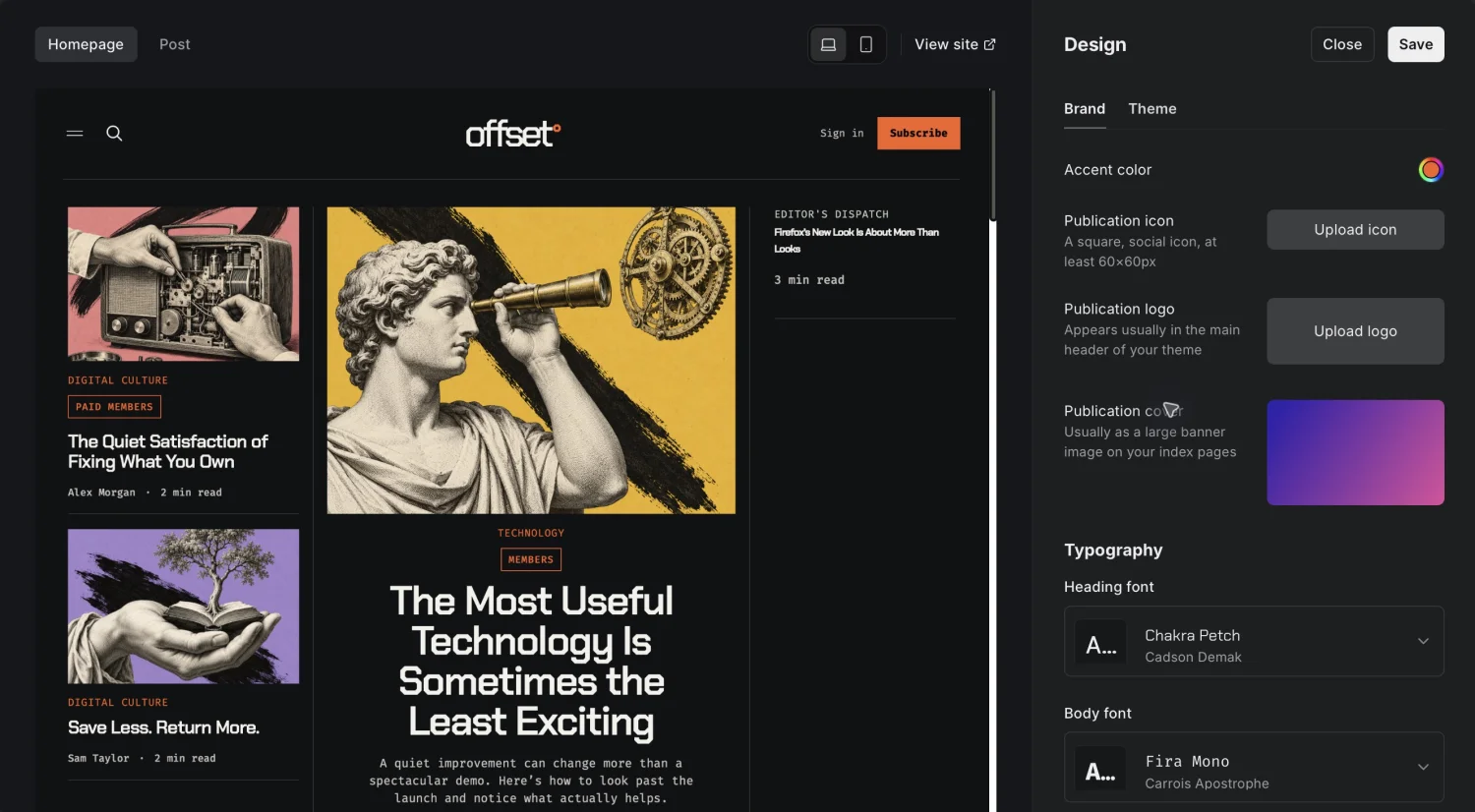
Select a screenshot to open it at full size. These captures show the demo’s settings, not required values for your site.
Typography
In the same Brand panel, use Heading font and Body font to select Ghost’s native font options. Offset respects those settings. Its stylesheet defaults are Chakra Petch for headings and Fira Mono for body text.
Review a long article as well as the homepage after changing fonts. Check title wrapping, image captions, buttons, and navigation. The theme loads its default font stylesheet from Google Fonts; self-hosting fonts requires editing the theme.
Offset retains its dark publication surfaces. There is no built-in light/dark appearance toggle or separate theme background-color picker.
Primary navigation
- Create and publish the pages you want to link to.
- Open Settings → Site → Navigation → Customize.
- Add labels and destinations under Primary navigation.
- Arrange links in your intended reading order and save.
- Open each link on the live publication.
Primary navigation appears in the header where space allows, in the menu overlay, and in the footer’s Explore column. On smaller screens the menu button gives access to these links.
For a topic link, open the tag’s actual archive and copy its URL. Do not assume the tag name and slug match. A page link belongs in navigation only after you publish the page; creating a page alone does not add it to the menu.
Secondary navigation and footer
Use Secondary navigation for About, Contact, Privacy, Terms, or other supporting pages you have created. Offset displays these under Elsewhere in the footer. The theme does not supply legal text.
The footer also includes RSS, Facebook and X links when those social accounts are configured, and a contact link when Ghost supplies a member support address. Other social fields available in Ghost are not automatically rendered as footer links by this theme.
The publication description and current year come from Ghost. The footer retains its Published with Ghost credit.
Verify your changes
Check the logo and navigation at desktop and phone widths. Open the menu with a keyboard, move through its links with Tab, and press Escape to close it. Verify every destination, including external links and legal pages.
Use the live demo to compare your settings with a working Offset site.