Offset documentation · All guides
Build your front page
Control lead stories, the editor’s dispatch, automatic topics, and the Report banner.
Lead and supporting stories
Offset selects the three newest published posts for the opening stories: one lead and two supporting stories. Publish a new post to change that selection. Featured status does not override this order.
Add a feature image and a useful excerpt to each article. The lead uses a larger image and displays an excerpt; supporting stories use more compact presentation. Protected articles can still appear as story cards, with access labels. Ghost controls whether a visitor can read the body.
Editor’s dispatch
- Open an article in the Ghost editor.
- Open its post settings and enable Feature this post.
- Save or update the article.
- Return to the homepage.
The dispatch shows up to three featured posts, including their titles and reading times. Feature several articles to build an editorial selection. Unfeature a post to remove it from this selection.
The link labelled Read the weekly dispatch scrolls to Latest on the same page. It does not create a newsletter, publish a weekly edition, or send an email.
Latest articles
Latest shows up to five newest posts. It has no separate pagination control on the homepage. A lead story or dispatch story may also appear here; repetition between editorial modules is expected.
The standard paginated article index and tag/author archives are separate views. If you use custom collections, verify their effect on the homepage’s Latest feed.
Automatic topic sections
A topic is a public Ghost tag with published posts. Offset discovers those tags automatically and adds a homepage section for each one. Unused tags and internal tags, whose names begin with #, are excluded.
- Open Tags in Ghost Admin and create or edit a public tag.
- Give it a clear name and optional description.
- Assign it to a published post.
- Reload your homepage to see its section.
Each section selects from the topic’s four newest articles. Layouts differ: a split section can show four stories, a design section three, a culture section two, and a standard grid up to three. View all opens the full tag archive.
A post with several public tags may appear in several sections. There is no manual topic inclusion list or drag-and-drop section order. Use a focused set of public tags if you want a shorter homepage.
Choose topic order
Open Settings → Site → Design & branding → Customize → Theme → Homepage and set Topic order:
- Most articles: descending published-post count; ties use the newest article, then the tag slug.
- Newest article: the most recently active topic first; ties use article count, then the tag slug.
Save and check the public homepage. JavaScript applies the selected order using data rendered by Ghost; it does not request a Content API key. Without JavaScript, topics retain Ghost’s article-count ordering. The theme paginates its tag queries, so discovery is not limited to 100 tags.
Configure the Report banner
In the same Homepage settings, set Report title, Report description, and Report url. The banner appears only when Report url is non-empty. The title and description alone do not make it visible.
Use a complete HTTPS URL or a root-relative path to an existing page or article. For example, /report/ is an illustrative path: create that page and verify its actual address before using it. Include your installation subdirectory if your Ghost site uses one.
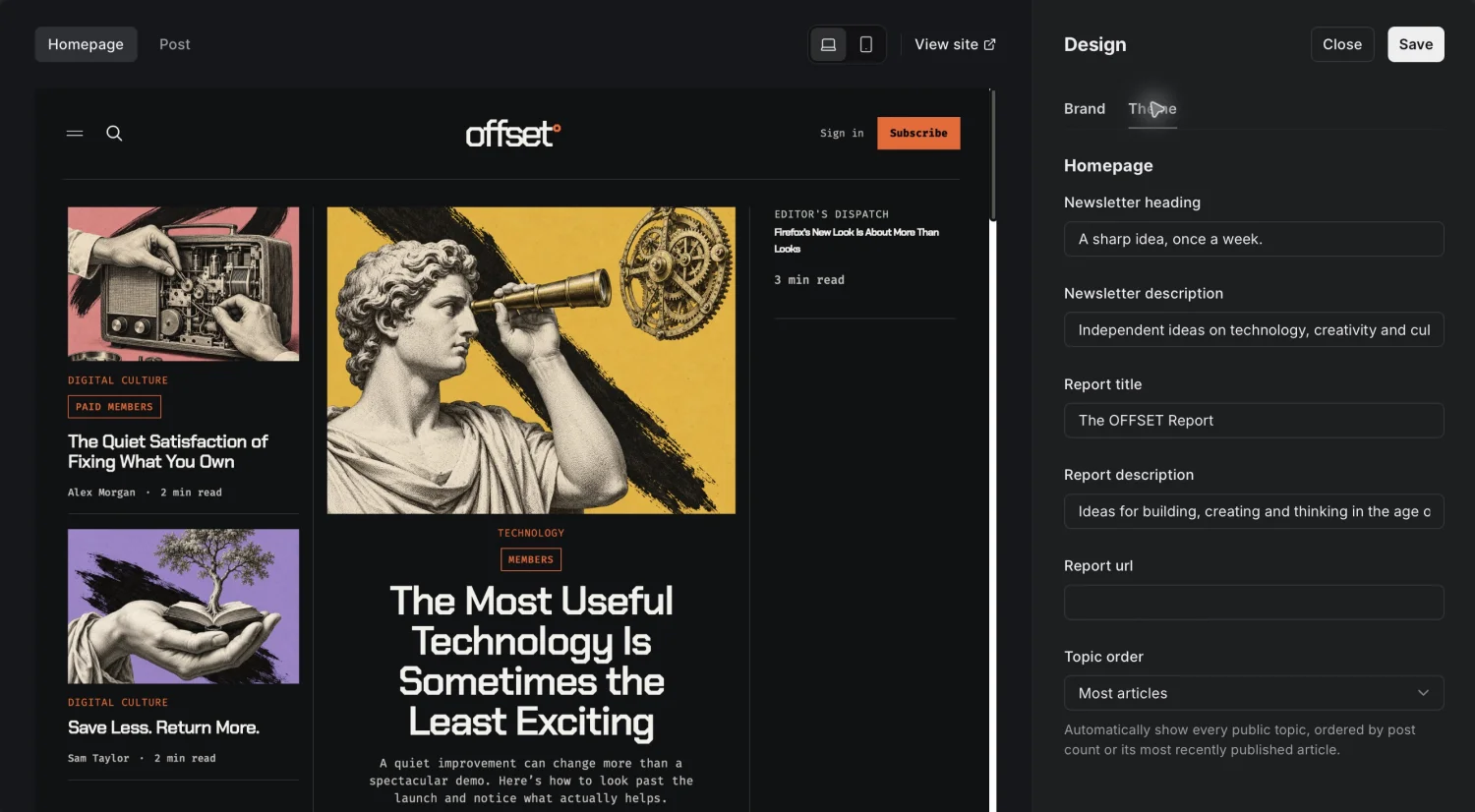
With JavaScript enabled and at least one topic present, the banner moves below the first topic. Otherwise it remains after the topic sections. Clear Report url to hide it.
The banner’s A quarterly field guide label and Explore issue no. 01 button text are translation strings, not custom text settings. Advanced customization explains how to change interface wording.
Newsletter section
Newsletter heading and description control the signup section near the footer. It is shared across the theme’s pages, even though Ghost groups these text settings under Homepage. The section appears only when memberships are enabled, public signup is available, and the visitor is signed out.
See memberships and newsletters for its subscription behavior and email requirements.
Use the live demo to compare your settings with a working Offset site.